Google Re-indexing After 403 Errors: A Shopify Merchant's Guide to Quick Recovery
Hey there, fellow Shopify merchants and store operators! We recently spotted a really important discussion in the community about a tricky situation: a site returning a 403 (Forbidden) error to Googlebot for an extended period and the subsequent challenge of getting it re-indexed. This isn't just a technical hiccup; it's a full-blown SEO emergency that can severely impact your store's visibility and sales. Let's dive into why this happens and, more importantly, how to fix it and prevent it from happening again.
The Silent Killer: What a 403 Error Means for Googlebot
Imagine Googlebot, your site's best friend for getting indexed and ranked, knocking on your store's door. Instead of a warm welcome (a 200 OK status), it gets a flat-out 'Forbidden' (a 403 status). This tells Googlebot, "You're not allowed here." When this happens for a month, as the original poster described, it's like your store has gone dark to Google. Your pages start to disappear from search results, traffic plummets, and all that hard work you put into SEO can vanish overnight.
The core problem isn't just the error itself, but Google's response. If a page consistently returns a 403, Google assumes it's intentionally blocked or no longer exists in a crawlable form, leading to de-indexing. Reversing this can feel like an uphill battle, but it's absolutely doable with the right steps.
Step One: Confirm the Fix is Real!
Before you do anything else, you absolutely must verify that the 403 error is truly resolved. This might sound obvious, but you'd be surprised how often people jump to re-indexing efforts before confirming the underlying issue is gone. Use a tool like Google Search Console's URL Inspection tool to check the live URL. Simulate Googlebot's crawl. Does it now return a 200 OK status? If not, stop and fix the root cause of the 403 first. Common causes include misconfigured server settings, incorrect file permissions, or even firewall rules blocking legitimate bots.
Your Lifeline: Google Search Console (GSC)
Once you're confident the 403 is gone, Google Search Console becomes your best friend for recovery. This is where you'll directly communicate with Google about your site's status.
- Request Re-indexing for Critical Pages:
- Go to Google Search Console.
- Use the URL Inspection tool at the top.
- Enter the URLs of your most important pages: your homepage, main category pages, and top-selling product pages.
- After inspecting, if the page is now crawlable, click "Request Indexing." This tells Google, "Hey, come back and look at this page again, it's fixed!"
- Prioritize pages that drive the most traffic or revenue.
- Submit an Updated Sitemap:
- Your sitemap (typically
yourstore.com/sitemap.xml) is a map of all the pages you want Google to know about. - Even if your sitemap hasn't changed, re-submitting it in GSC (under "Sitemaps") is a strong signal to Google that your site's structure is stable and ready for a fresh crawl. It helps Google discover all your URLs, not just the ones you manually requested.
- Your sitemap (typically
- Monitor the Coverage Report:
- In GSC, navigate to the "Indexing" > "Pages" report.
- Look for pages that were previously marked as "Excluded" due to crawl errors (like your 403s). As Google re-crawls, you should see these numbers decrease and "Indexed" pages increase.
- Keep a close eye on any new errors that might pop up, ensuring your fix didn't introduce other issues.
Beyond GSC: Other Speed-Up Tactics
While GSC is your primary tool, a few other actions can help:
- Strong Internal Linking: Ensure your internal links are robust and point to all important pages. This helps Googlebot discover pages more easily as it navigates your site.
- Fresh Content: If possible, publish some new content or update existing product descriptions. New activity can sometimes prompt Googlebot to visit more frequently.
Continuous Monitoring is Key
Recovering from a 403 error and re-indexing is not a one-time fix; it's an ongoing process. You need to consistently monitor your site's SEO health. This includes keeping an eye on crawl stats, indexing status, and traffic trends. For Shopify merchants managing multiple regions, robust Shopify Markets SEO monitoring is paramount. You need to ensure that each market-specific version of your site is correctly indexed and performing optimally, preventing similar issues from affecting your global presence.
EShopSet Team Comment
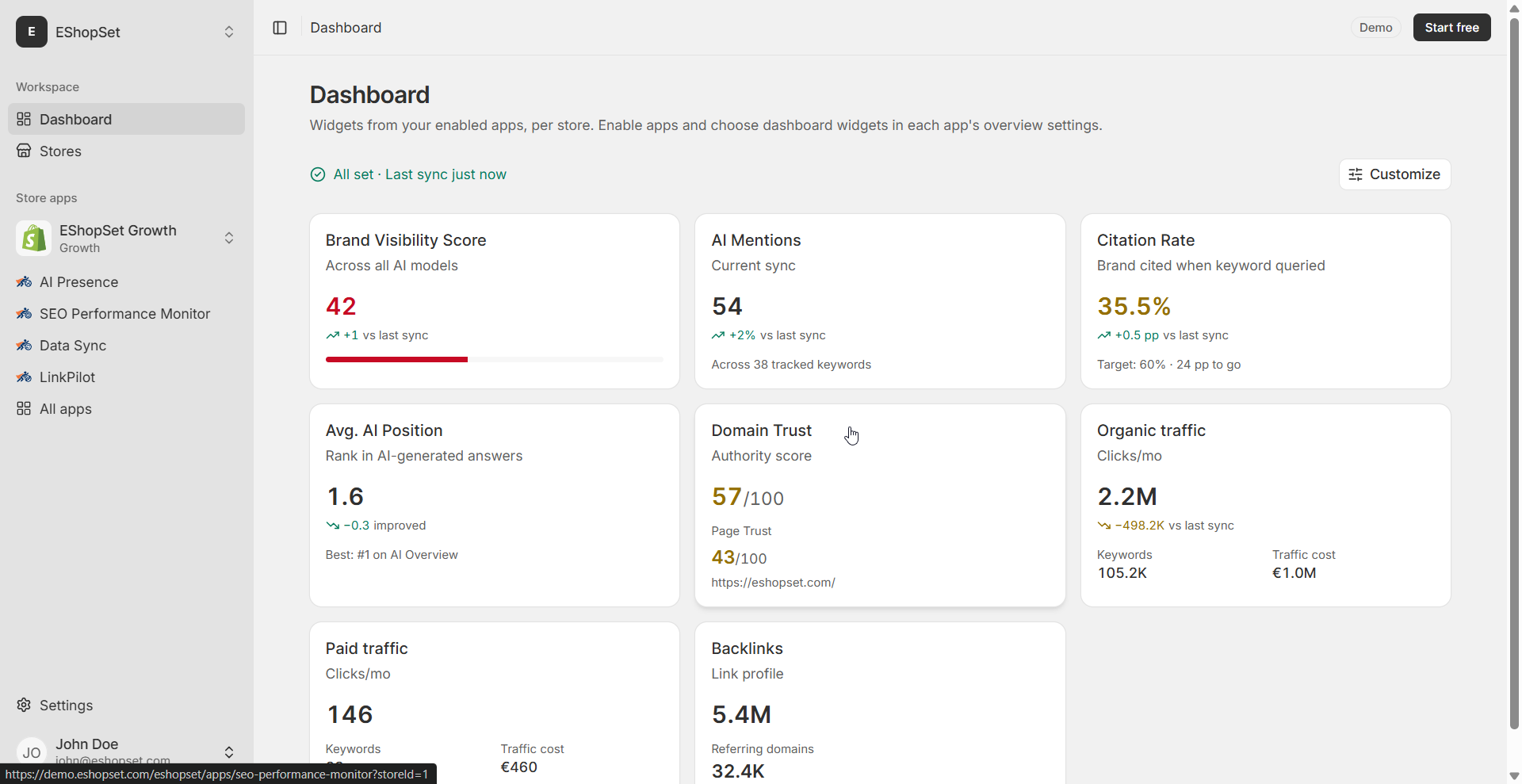
This community discussion highlights a critical vulnerability for any online store. A prolonged 403 error can devastate SEO, and proactive monitoring is the only true defense. We strongly agree with the emphasis on Google Search Console for recovery, but prevention is always better than cure. Our SEO Performance Monitor app is designed precisely for this, alerting Shopify merchants to crawl errors, indexing issues, and other SEO health problems before they escalate into major crises like the one discussed here. It provides the visibility needed to catch 403s early across all your Shopify Markets.
Dealing with a site that has been de-indexed due to a 403 is incredibly stressful, but with a methodical approach and the right tools, you can absolutely bring your store back to full visibility. Remember, consistency in monitoring and quick action are your best friends in the world of ecommerce SEO. Stay vigilant, keep those crawl errors at bay, and watch your Shopify store thrive!