Logs and daily sync
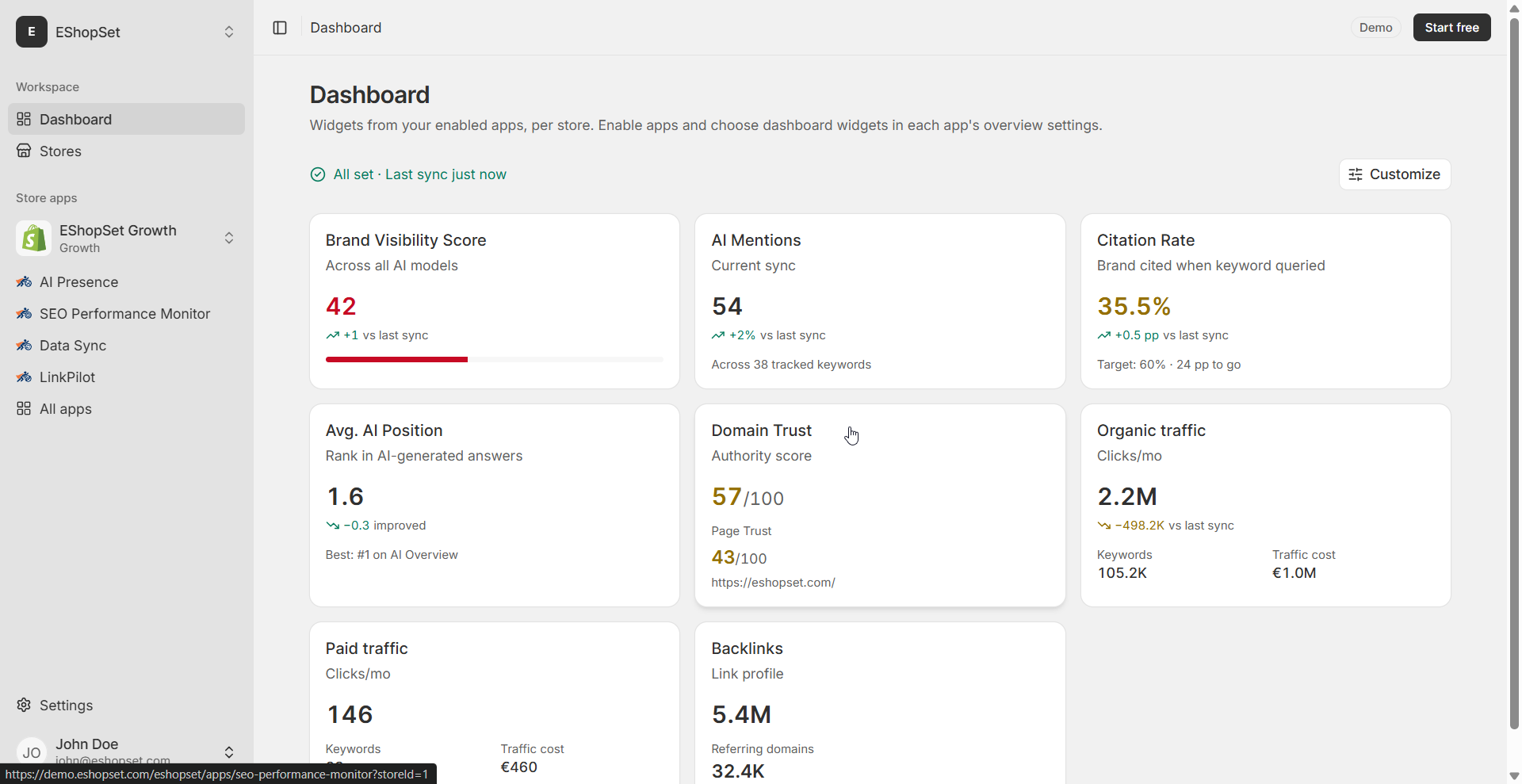
Note: organic/paid traffic and keyword positions are estimated third-party snapshots—not Shopify Analytics.
Overview shows outcomes; Logs show whether the job that produced them actually finished.
Prerequisites
- App enabled with Settings saved
Steps
- Open Logs after the expected daily sync window (or after you change Settings).
- Confirm the newest job succeeded. Read warn/error lines if Overview looks stale or empty.
- Use Run now when you need a fresh pull after a domain/locale fix—don’t spam retries without changing config.
- When the run succeeds, return to Overview and verify KPIs and tables updated.
Tips
- One clean retry after a Settings fix beats ten blind retries.
- Partial data (e.g. KPIs but empty keywords) usually means a mid-job failure—Logs will say which step.
Troubleshooting
- Repeated failures: verify domain spelling, locale codes, and that the store still has required access.
- Install job never appeared: re-check enable state from the apps catalog and Settings completeness.