Enable and configure SEO settings
Note: organic/paid traffic and keyword positions are estimated third-party snapshots—not Shopify Analytics.
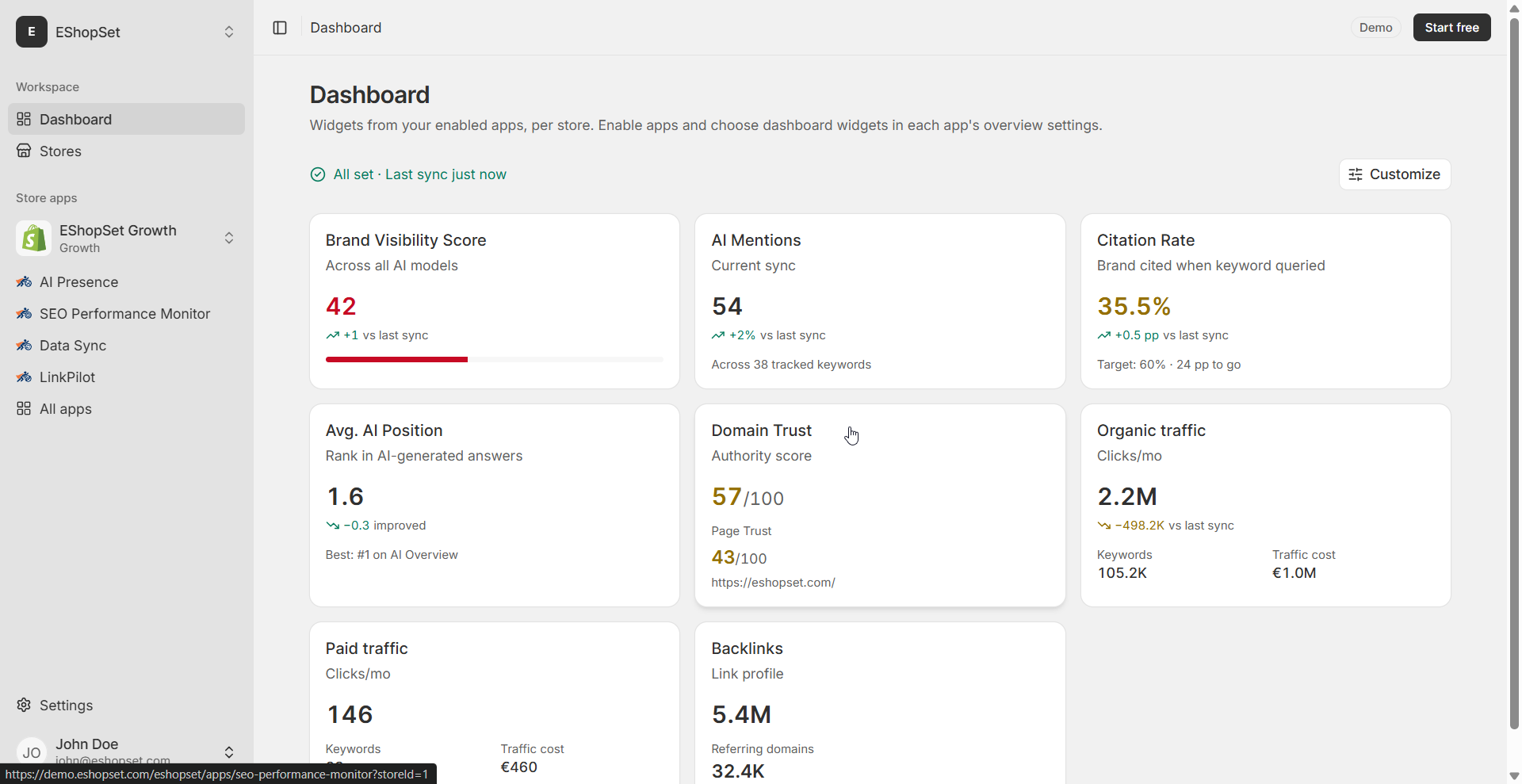
Before Overview fills with rankings and traffic, configure the store domain and how much data each sync should pull.
Prerequisites
- Shopify store connected in EShopSet
- SEO Performance Monitor enabled from the apps catalog
Steps
- Open SEO Performance Monitor → Settings.
- Confirm Domain (no
https://orwww.). On enable, this is often seeded from your Shopify store domain—fix it if the public site uses a different host. - Set primary country and language for ranking data.
- Choose tracked countries for the traffic-by-country table.
- Set limits within your plan: keywords (up to 25 / 50 / 100), competitors (5 / 10 / 20), and top pages (10 / 20 / 50). See pricing.
- Save. The first daily sync (or a manual run from Logs) uses these values.
Tips
- Keep domain spelling consistent with how the site ranks in Google.
- Start with fewer keywords than your cap so weekly reviews stay focused.
Troubleshooting
- Empty Overview after enable: check Logs for the install/sync job and confirm domain is set.
- Wrong country mix: update tracked countries and wait for the next successful sync.