Mastering Ecommerce Backups: Your Agency's Guide to Secure Local FTP Servers
Hey EShopSet community!
In the fast-paced world of ecommerce, where every transaction counts and client trust is paramount, reliable backups aren't just a nice-to-have; they're a non-negotiable cornerstone of good agency practice. Whether you're managing a complex WooCommerce site, prepping for a major Shopify migration project, or integrating a client's storefront with HubSpot Commerce, having a solid backup strategy can literally save your bacon – and your client relationships.
Recently, a fascinating discussion popped up in a community forum that caught our eye. The original poster was wrestling with a common challenge: how to set up a Windows 11 PC as a dedicated FTP server to receive site backups, specifically from a tool like UpdraftPlus. They were finding a ton of info online, but nothing seemed to click for their specific need to simply download backups onto their local machine.
This isn't just a niche technical query; it's a fundamental operational question for agencies. How do you centralize and secure client site backups efficiently? How do you ensure these critical safeguards are integrated into your broader ecommerce agency delivery management? Let's dive into the community's insights and break down some actionable steps, ensuring your agency's backup strategy is robust and secure.
The Quest for a Local Backup Hub
The original poster’s goal was clear: they wanted backups to go directly to a Windows PC, transforming it into a sort of personal backup server. This approach has definite advantages for agencies – local control, potentially faster recovery for certain scenarios, and an extra layer of redundancy outside of the hosting environment. For agencies leveraging platforms like HubSpot for CRM and Sales Hub, ensuring the integrity of client storefront data (which might integrate with HubSpot) through reliable backups is crucial for seamless RevOps and client success.
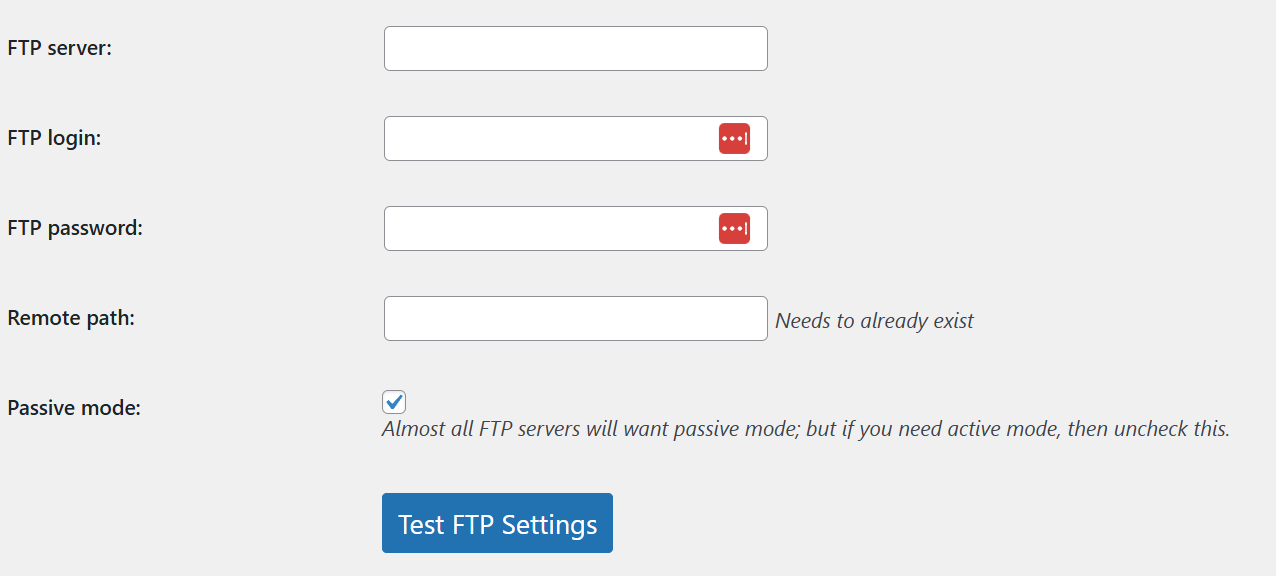
The initial challenge, as the original poster described, was finding straightforward instructions that actually worked. They even shared a screenshot of their UpdraftPlus settings, illustrating where they were trying to point their backups. This highlights a common pain point: translating general technical advice into specific, actionable steps for a particular setup.
(Image: Screenshot of UpdraftPlus settings attempting to configure an FTP backup destination)
Community-Driven Solutions: FileZilla vs. Built-in IIS
The community quickly jumped in with some excellent suggestions, offering two primary paths to achieve the desired local FTP server setup:
Option 1: Leveraging FileZilla Server for Simplicity
One community member recommended using FileZilla Server, highlighting its ease of setup. This is often a go-to for many users due to its user-friendly interface and robust features. For agencies, FileZilla Server can be a quick win for establishing a dedicated backup endpoint.
- Installation: Download and install FileZilla Server from the official website.
- User Creation: Open the FileZilla Server Interface. Go to Edit > Users. Add a new user specifically for your backup process (e.g., 'updraftuser').
- Directory Mapping: Under the 'Shared Folders' tab for your new user, add a directory. This should be the specific folder on your Windows 11 PC where you want to store the backups. Grant this user 'Read', 'Write', 'Delete', and 'Append' permissions for this folder.
- Firewall Configuration: Ensure your Windows Firewall allows incoming connections on the FTP port (default is 21) for FileZilla Server.
Once configured, your UpdraftPlus (or similar backup tool) can connect to your PC's IP address using the created username and password.
Option 2: Utilizing Windows 11's Built-in IIS FTP Server
Another helpful community member provided a detailed walkthrough for using Windows 11's native Internet Information Services (IIS) FTP server. This method offers deep integration with the operating system and can be ideal for agencies looking for a more integrated Windows solution.
Step 1: Enable FTP Server Features
Open Control Panel > Programs > Turn Windows features on or off.
Expand "Internet Information Services" and enable:
  - FTP Server
  - FTP Service
  - FTP Extensibility
Also, ensure "IIS Management Console" is enabled.

Step 2: Configure in IIS Manager
Search for and open "IIS Manager" from your Start menu.
In the Connections pane, expand your server, right-click on "Sites", and select "Add FTP Site...".
  - FTP Site Name: Give it a descriptive name (e.g., "Client Backups").
  - Physical Path: Browse to the folder on your PC where you want to store backups.
  - Binding and SSL Settings: For IP Address, choose "All Unassigned" or your PC's specific IP. Keep the port at 21 (or choose another if necessary). For now, select "No SSL" for simplicity, but consider SSL/TLS for production environments.
  - Authentication and Authorization: Select "Basic" authentication. For Authorization, choose "Specified users" and enter the Windows username you'll use (e.g., 'BackupUser'). Grant "Read" and "Write" permissions.

Step 3: Set Folder Permissions
Navigate to your backup folder in File Explorer. Right-click > Properties > Security tab. Ensure the Windows user account you specified in IIS Manager has full "Read" and "Write" permissions to this folder.

Step 4: Configure Windows Firewall
Open Windows Defender Firewall with Advanced Security. Create an inbound rule to allow connections on port 21 (or your chosen FTP port) for the FTP service. You can also allow the "FTP Server (FTP Traffic-In)" pre-defined rule.
Critical Security and Operational Considerations for Agencies
Setting up a local FTP server is only half the battle. For robust ecommerce agency delivery management, especially when handling sensitive client data, security and operational best practices are paramount:
- Dedicated User Accounts: Always create specific, non-administrative user accounts for FTP access, with permissions strictly limited to the backup folder.
- Strong Passwords: Enforce complex, unique passwords for these FTP accounts.
- Firewall Rules: Beyond enabling the FTP port, consider restricting access to specific IP addresses if your agency operates from a static IP, or only allow connections from your web servers.
- Dynamic IP Service (DDNS): As one community member suggested, if your Windows PC has a dynamic IP address (common for home or small office internet connections), you'll need a Dynamic DNS service (like No-IP or Duck DNS). This service maps a static hostname (e.g.,
youragencybackups.ddns.net) to your changing IP address, ensuring your backup tools can always find your server. - Network Security: Ensure your local network is secure. Use a robust router firewall, keep your Windows 11 system updated, and consider VPN access if connecting from outside your agency's secure network.
- Redundancy and Offsite Backups: A local FTP server adds a great layer of redundancy, but it shouldn't be your only backup solution. Always maintain offsite backups (e.g., cloud storage like Amazon S3, Google Drive) as part of a comprehensive disaster recovery plan.
- Regular Testing: Periodically test your backup and restore processes. There's nothing worse than discovering a backup is corrupt when you desperately need it. Integrate backup verification into your regular workflow runs for client sites.
- HubSpot Integration Context: For agencies managing client storefronts that integrate with HubSpot (e.g., for order syncing, customer data, or marketing automation), the integrity of the source data is vital. Secure, tested backups ensure that if a storefront issue arises, you can restore it without impacting the data flow or customer experience managed through HubSpot CRM or Commerce.
Conclusion: Empowering Your Agency's Backup Strategy
The community thread highlights a common but critical challenge for ecommerce agencies: establishing reliable, secure backup infrastructure. Whether you opt for the user-friendliness of FileZilla Server or the integrated power of Windows IIS, setting up a local FTP server on a Windows 11 PC is a highly effective way to enhance your client site backup strategy.
By implementing these solutions with a strong focus on security and integrating them into your overall ecommerce agency delivery management, you not only protect your clients' valuable data but also streamline your operational processes. This proactive approach minimizes downtime, strengthens client trust, and ensures your agency is always prepared for the unexpected, allowing you to focus on growth and delivering exceptional results.