Install EShopSet from the Shopify App Store
The fastest way to start with EShopSet is to install it from the Shopify App Store, authorize permissions for your store, then enable the apps you need for daily SEO, AI presence, and catalog sync.
Prerequisites
- An active Shopify store.
- A staff account with permission to install apps (usually store owner or a staff member with Apps permission).
Steps
- Open the Shopify App Store. In Shopify Admin, go to Apps, then choose Shopify App Store—or visit apps.shopify.com and log in with your store.
- Find EShopSet. Search for EShopSet and open the listing.
- Start install. Click Install (or Add app, depending on the listing UI).
- Review permissions. On the install screen, read the data access EShopSet requests and the developer privacy policy, then confirm Install to authorize.
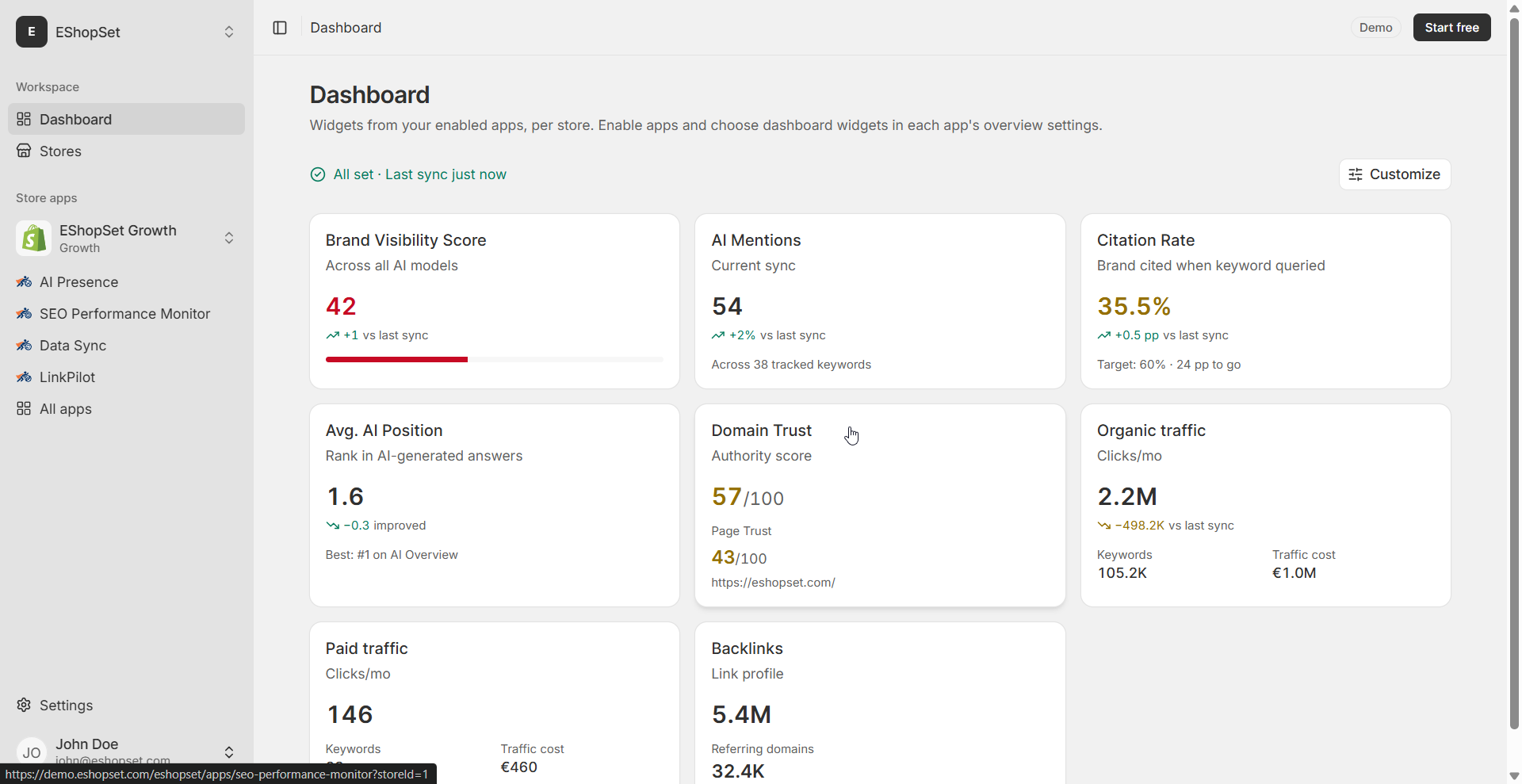
- Open the app. After install, open EShopSet from Apps in Shopify Admin (embedded Admin experience).
- Enable your first apps. From the catalog, enable SEO Performance Monitor, AI Presence, and/or Data Sync for this store.
- Configure and verify. Complete each app’s Settings, then check Overview and Logs after the first run.
After you install
- Plans and limits apply per Shopify store—if you manage a portfolio, install or connect each store separately.
- You only pay for what you enable; unused apps do not need to stay on.
- Prefer the App Store path so Shopify’s permission review stays in the install flow.
Tips
- Installing on the wrong store? Switch to the correct admin (yourstore.myshopify.com/admin) before searching the App Store.
- Need the product overview first? Read What is EShopSet?
Troubleshooting
- Cannot find the listing: Confirm you are logged into the right store on apps.shopify.com, then search again for EShopSet.
- Install blocked: Ask a store owner to grant Apps permission, or have them complete the install.
- App missing after install: Refresh Admin, then open Settings → Apps and launch EShopSet.