Logs and Run now
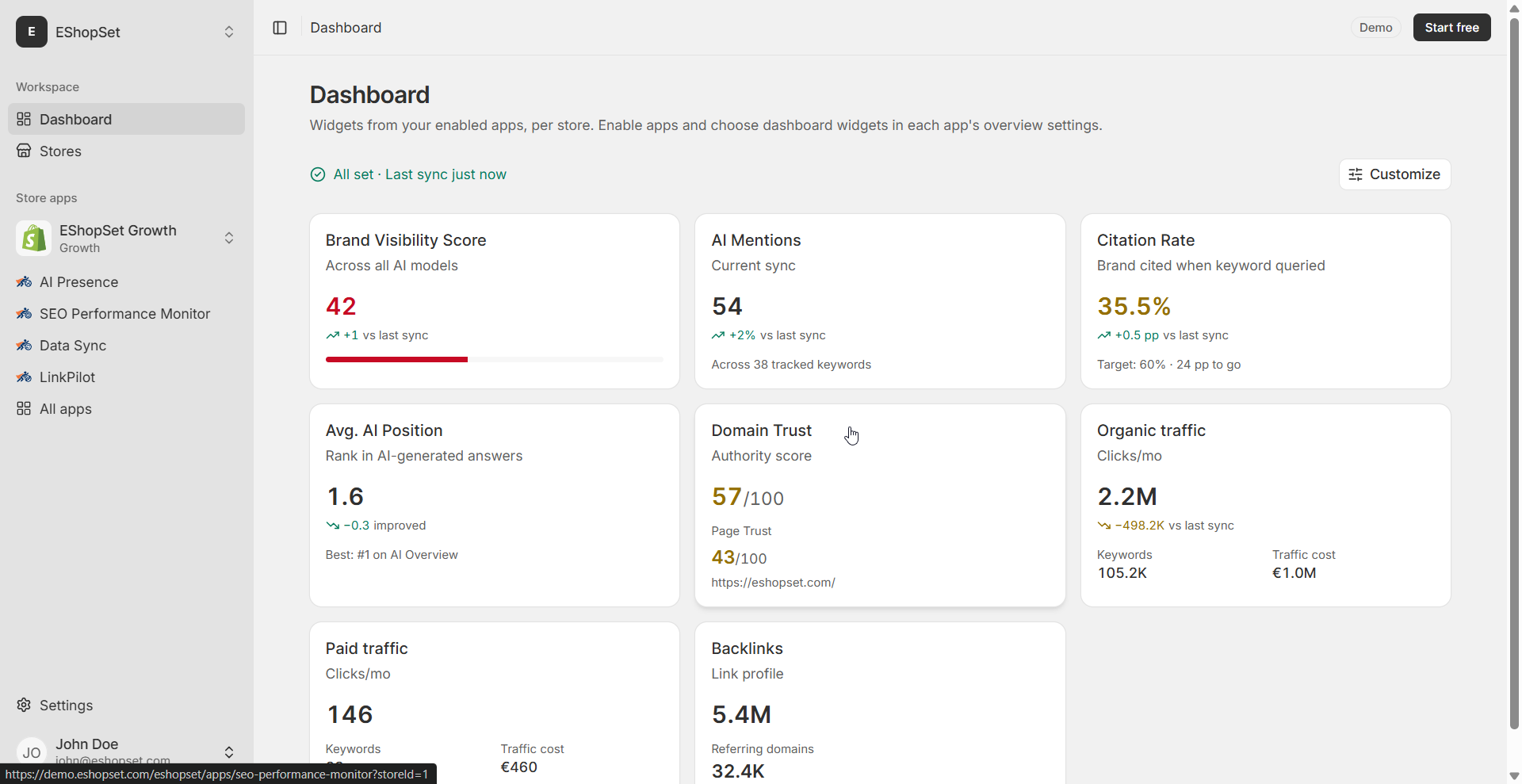
When Overview looks wrong, Logs tell you whether the job skipped, seeded, timed out, or finished cleanly.
Prerequisites
- AI Presence enabled
Steps
- Open Logs and sort to the newest job.
- Read lines about seeding, keyword counts, and per-step failures.
- After fixing Settings (queries, domain, AI surfaces (ChatGPT, Gemini, Perplexity, Google AI Overviews)), use Run now once.
- Confirm Overview refreshed only after the job succeeds.
Tips
- Empty Overview + log line about failed suggestion generation means add queries manually and rerun.
- Scheduled syncs continue daily; use Run now for intentional refreshes after content launches.
Troubleshooting
- Repeated timeouts: retry later; if persistent, reduce keyword count temporarily and contact support with the job id from Logs.
- Job succeeded but UI stale: hard-refresh Overview; confirm you are on the correct store in the app shell.